
Key Steps to Migrate
- How to Sign Up
- Understanding Workflow Options to Determine your Migration Path
- Select Your Desired Workflow and Proceed with the Migration Steps
- Integrate BigCommerce
- Integrate Marketplaces and Set Up Order Management
- Set Up Inventory Management
- Set Up Pricing Management
- Set Up Listing Management
- Live Training + Q&A Options and an Overview Video
Sign Up for a SellerActive Marketplace Management Account
From the BigCommerce App Marketplace
- While logged in as the BigCommerce store owner, from BigCommerce's left navigation, go to "Apps" > go to the new "BigCommerce App Marketplace" > search for "SellerActive Marketplace Management"
- Click “Get this app”
- Click “Install”
- Once the app is installed, proceed with signing up for an account by adding your contact information and credit card information
- Click here to see subscription plans/costs
- Once installed, you’ll be able to access SellerActive Marketplace Management from BigCommerce’s My Apps section
- Your BigCommerce data will begin importing into SellerActive
SellerActive supports BigCommerce Multi-Storefront (MSF) accounts. If you have an MSF account, first install SellerActive for your main business.
If you'd like to install the second/additional stores of your multi-store account, take these additional steps:
- Create the additional businesses inside of your Cart.com organization.
- Then go to the secondary/additional stores of your multi-store account and install SellerActive. When given the option to choose which business/store, select the secondary/additional business(es).
Understanding Workflow Options to Determine your Migration Path
Depending on your business needs, there are a couple of options to set up your SellerActive account:
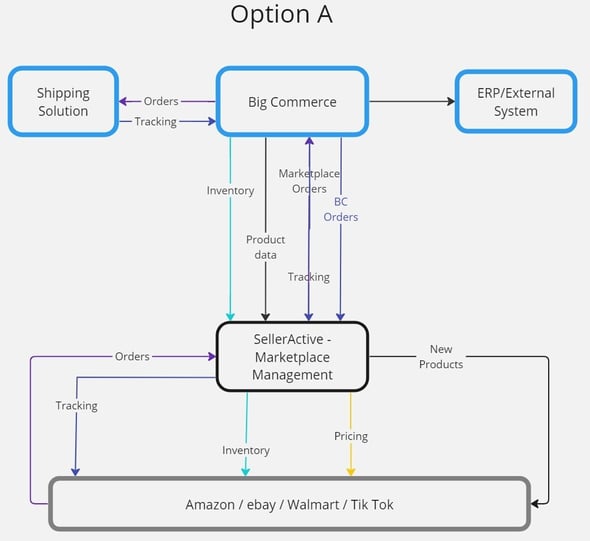
Workflow Option A: Manage orders and inventory in BigCommerce
Option A is the most common workflow.
- Orders source of truth: BigCommerce (all orders will import into BigCommerce and be managed from there)
- Inventory source of truth: BigCommerce (inventory updates will be made in BigCommerce, which will then update the connected channels via SellerActive)
- Pricing source of truth: Select either BigCommerce or SellerActive to be your source of truth for pricing
- See the diagram below for a visual representation of Workflow A.
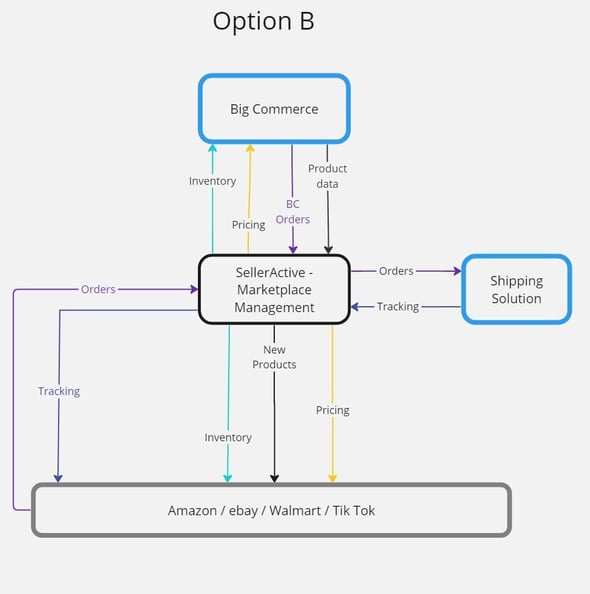
Workflow Option B: Manage orders and inventory in SellerActive
- Orders source of truth: SellerActive (all orders will import into SellerActive and be managed from there)
- Inventory source of truth: SellerActive (inventory updates will be made in SellerActive, which will then update the connected channels)
- Pricing source of truth: Select either BigCommerce or SellerActive to be your source of truth for pricing
- See the diagram below for a visual representation of Workflow B.
Additional Workflow Options - Attend a webinar session to ask how to set up an alternate workflow.
For both workflow options above, the following will apply:
- Pricing source of truth: You may select either BigCommerce or SellerActive to be your source of truth for pricing. View this article to read more about pricing options.
- Publishing Listings:
- Use BigCommerce for listing on BigCommerce (The ability to list to BigCommerce is on the product roadmap.)
- Use SellerActive for listing on Amazon, ebay, Walmart, and TikTok.
- To publish feeds to Google Shopping, view this article.
Select your Desired Workflow and Proceed with the Migration Steps
- Click here for Workflow A: Manage orders and inventory in BigCommerce (most common workflow)
- Click here for Workflow B: Manage orders and inventory in SellerActive
Learn How to use SellerActive via Live Training and Q&A Sessions
- Check out additional support articles by clicking here.
- Need help with signing up and getting started? Schedule a meeting using this link.
- Check out this general overview video of SellerActive: